Author

Antonina Smyrnova
FreshBooks is a well-known accounting tool for service businesses that want easy invoicing, expense tracking, and client management. As companies expand, they often need FreshBooks to work with CRMs, project tools, spreadsheets, and internal databases rather than on its own.
This is often when issues start to appear.
In this article, we’ll look at five common FreshBooks integration mistakes and explain how to avoid them with resynced.io, a no-code tool that syncs FreshBooks with Google Sheets, Notion, and other business systems.
Mistake 1: Treating FreshBooks as a Standalone System
Many teams use FreshBooks only for invoicing and bookkeeping, while customer data, project details, or internal reports are stored elsewhere. Over time, this creates data silos.
What goes wrong
- Invoices don’t reflect the latest customer or project data
- Finance and operations teams work from different numbers
- Manual copy-paste becomes routine
How to avoid it with resynced.io
resynced.io lets you sync FreshBooks data with tools your team already uses, like Google Sheets or Notion. This keeps invoices, clients, and payments linked to your other workflows. Teams can use the same, consistent data without jumping between systems.
Mistake 2: Syncing Too Much Data at Once
Another common mistake is syncing all FreshBooks data by default. While this may seem easier at first, it often clutters databases and slows down your workflow.
What goes wrong
- Unnecessary fields flood spreadsheets or dashboards
- Reports become harder to read and maintain
- Teams lose focus on the metrics that matter
How to avoid it with resynced.io
With resynced.io, you can choose exactly which FreshBooks objects and fields to sync. This selective method keeps your tools organized and ensures teams only see the data they need, such as clients, invoices, payments, or specific custom fields.
Mistake 3: Relying on One-Way Syncs
Many integrations only move data one way, for example, from FreshBooks to a spreadsheet. This setup works until someone updates information elsewhere and expects FreshBooks to reflect the change.

What goes wrong
- Inconsistent client details across tools
- Duplicate records
- Confusion over which system is the “source of truth”
How to avoid it with resynced.io
resynced.io supports two-way data sync, allowing updates made in connected tools to flow back into FreshBooks when needed. This is especially useful for teams managing client details, invoice statuses, or internal annotations outside of FreshBooks.
Mistake 4: Using Spreadsheets Without Automation
Many teams use Google Sheets for FreshBooks reporting, forecasting, or reconciliation. However, without automation, these spreadsheets quickly become outdated.
What goes wrong
- Reports rely on manual exports
- Numbers are outdated by the time decisions are made
- Errors creep in during manual updates
How to avoid it with resynced.io
resynced.io keeps FreshBooks data updated in Google Sheets on a set schedule. Teams can build formulas, dashboards, and financial models with live data, so they don’t have to worry about broken imports or outdated numbers.
Mistake 5: Ignoring Error Handling and Sync Visibility
When integrations fail without warning, teams often don’t notice until problems appear, such as missing invoices, incorrect totals, or incomplete records.
What goes wrong
- Data discrepancies go unnoticed
- Debugging becomes time-consuming
- Trust in reports decreases
How to avoid it with resynced.io
resynced.io gives teams a clear view of sync status and activity, so they know what is syncing, when, and how. This transparency helps prevent surprises and makes integrations easier to manage over time.
Why FreshBooks Integrations Fail and How to Get Them Right
Most FreshBooks integration problems don’t come from the accounting tool itself. They usually happen because of:
- Poor data selection
- Lack of bidirectional sync
- Overreliance on manual processes
By carefully planning integrations and using a flexible sync tool like resynced.io, teams can turn FreshBooks into a connected part of their system rather than a bottleneck.
How resynced.io Supports FreshBooks Integrations
The FreshBooks integration in resynced.io is designed for teams that want control without added complexity. With resynced.io, you can sync FreshBooks clients, invoices, payments, and more.
- Choose fields and sync directions
- Connect FreshBooks with Google Sheets, Notion, and other tools
- Keep financial data accurate and up to date.
This helps finance, operations, and leadership teams work from the same data without extra manual effort.
Final Thoughts
FreshBooks works best when it’s part of a larger workflow, not used on its own. Avoiding these common integration mistakes can save time, reduce errors, and help your team trust their numbers.
If you want to connect FreshBooks with your other tools, using a selective, two-way, automated approach with resynced.io helps you set things up correctly from the start.
Ready to automate your FreshBooks?
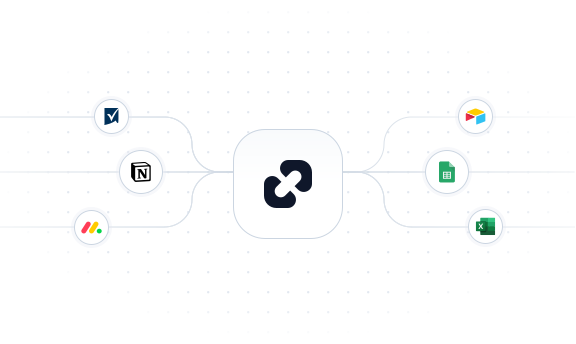
With resynced.io, you can set up complete FreshBooks automation in under 10 minutes. Our no-code integration platform seamlessly connects FreshBooks with Google Sheets, Notion, monday.com, and Smartsheet.
Start your free 14-day trial — no credit card required, no setup fees.
Questions about FreshBooks automation? Email us at hi@resynced.io, and we'll help you design the perfect automated workflow for your business.

We are here to synchronize your data!