Author

Antonina Smyrnova
If your team uses Notion to manage clients and projects but needs a more organized system, you’re not alone. Many service businesses start with Notion because it’s flexible and easy to set up. However, as your client list grows or you take on more projects, it can become harder to keep track of updates, work together smoothly, and monitor progress.
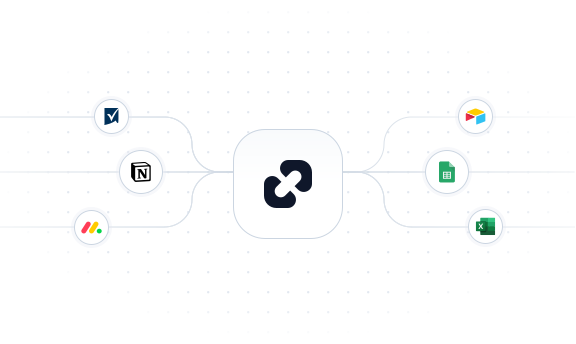
monday.com projects steps in to tackle these challenges. With visual boards, smart automation, timelines, and dashboards, it smooths the path for business growth. Connect Notion CRM to monday.com projects via resynced.io, and your tools will work in perfect harmony.
Why Move from Notion CRM to monday.com
Many teams choose Notion for CRM because it’s simple to set up. It lets you keep leads, client details, tasks, meeting notes, deals, and documents all in one place. But as projects become more complex, such as in marketing agencies, consulting firms, design studios, IT teams, or for freelancers with many clients, you need more automation and improved workflows.
monday.com provides the structure that Notion lacks. Your team can see the entire workflow at once, without manually checking each entry for deadlines or status. Rather than scrolling through tables in Notion, you get a clear board that shows what’s due, what’s blocked, and who is responsible.
Some advantages become immediately apparent:
- Better visibility: Instead of buried database rows, teams can view projects on Kanban boards, Gantt charts, timelines, or dashboards.
- Built-in automation: For example, if a deadline changes, monday.com can notify the team automatically. Notion does not do this on its own.
- Role-based collaboration: Designers, account managers, and operations teams can work together without jumping between tools.
For service businesses, switching to this setup leads to smoother project delivery and less manual tracking.
Why Manual Migration or Using Both Tools Without Sync Becomes a Problem
Some teams use Notion for CRM and documentation, and monday.com for tasks at the same time. Without automation, though, this setup quickly becomes hard to manage.
For example, a consultant might update a client’s status in Notion, but the project manager only checks monday.com. Or a designer could work in monday.com while the account manager updates client notes in Notion. Soon, information becomes out of sync.
This is where problems appear:
- People copy-paste the same information multiple times
- Different team members see different versions of the truth
- Some deadlines or tasks get updated in one tool but not the other
- Important updates fall through the cracks
If you’ve ever had a client ask, “Why wasn’t this updated?” it’s usually because the tools were not synced.
How resynced.io Solves the Notion CRM to monday.com Challenge
resynced.io acts as a bridge between the two systems, so your team does not have to update them manually. You do not need technical skills or complicated setups. Everything is managed through a simple interface.
With resynced.io, you always know which tool has the latest information because both Notion and monday.com stay up to date. For example, when your sales team marks a deal as “Closed” in Notion, a new project appears in monday.com. If a project status changes in monday.com, the CRM record in Notion updates immediately.
This removes confusion, reduces manual work, and helps your whole team stay in sync.
resynced.io offers several practical benefits:
- Setup is fast: You connect your accounts, pick the database and board, and you're ready to go.
- Mapping is intuitive: For example, Notion's "Status" can map to monday.com's "Status Column" without hassle.
- You choose the sync direction: Some teams sync only from Notion to monday.com, while others use two-way sync to keep both tools aligned.
- Custom fields are supported: If you track “Project Budget” or “Client Priority,” those can sync too.
For service teams that need accurate information, this setup creates a single source of truth, even when using different tools.
What Data you Should Sync
Every business puts its own spin on Notion CRM. Some keep it simple, others run their whole operation from it. But a few key pieces of information are always essential for smooth client work.
Here is what usually makes the biggest difference when synced to monday.com, and why:
Task or project names - Gives structure and clarity across tools.
Status updates - Reflects real-time progress so teams don’t rely on outdated info.
Due dates & deadlines - Critical for client expectations and timely delivery.
Assignees / Owners - Helps each team member know what they are responsible for.
For example, imagine marking a client onboarding task as “Done” in Notion but forgetting to update monday.com, your operations team might start work late or miss a deadline. With sync, these misunderstandings disappear.
Once you sync foundational fields, you can go deeper: budgets, client tags, priority levels, service packages, meeting schedules, and internal notes.
This gets your workflow ready for the future, allowing your tools to grow along with your business.
How to Migrate Notion CRM to monday.com Using resynced.io
Setting up the sync is simple, even if your team is not technical. For example, if you have a Notion CRM with leads and a monday.com project board with tasks, the goal is for them to sync automatically.
Here’s what the process looks like in practice:
- Connect Notion and monday.com. Sign in to resynced.io and connect both accounts. For example, select “Client CRM” in Notion and “Active Projects Board” in monday.com.

- Apply filters if needed. Let’s say you only want to sync clients with a “Contract Signed” status. You can filter for this easily.

- Map fields. Example mappings:
- Notion “Client Name” to monday.com “Item Name”
- Notion “Project Start Date” to monday.com “Date Column”
- Notion “Status” to monday.com “Status Column”
- Choose sync direction
- One-way sync if your CRM lives primarily in Notion.
- Two-way sync if both tools are part of daily operations.

- Run your first sync
When you click “Run,” your items appear on monday.com, and updates sync automatically every 10 minutes.
What once took hours of manual copying now happens automatically, saving you time and hassle.
How Companies Use the Integration
Here are some examples of how different service teams put this integration to work:
Marketing agency
Keeps campaign briefs in Notion but executes tasks in monday.com. This way, sync ensures deadlines and task statuses stay consistent.
Consulting firm
Stores client records, meeting notes, and deliverables in Notion. So the project execution happens in monday.com. And sync guarantees that both tools show accurate progress.
Design studio
Creative teams use Notion for content planning, while project managers may rely on monday.com for timelines and client updates. This way, no double work is needed.
Freelancer managing many clients
Instead of switching between tools all the time, they use sync to make monday.com the central hub, while Notion stores detailed information.
Why Automated Sync Outperforms Manual Workflow
Even the most organized teams stumble over manual updates. Mistakes sneak in, and in service businesses, those errors can cost you time, money, and client trust.
Automated sync solves these problems at the source by:
- Preventing outdated information
- Eliminating manual double-entry
- Ensuring team alignment
- Maintaining accuracy even as data scales
Automated sync is like switching from rowing a boat by hand to using a motor. You still steer, but you don’t have to work as hard to keep things moving.
If your business uses several tools, resynced.io provides a safe, modern way to keep everything connected without compromising your privacy or security.
Ready to try? Sign up for free and experiment with different types of integrations.
FAQ
1. How do I move my Notion CRM data to monday.com Projects?
You can export/import manually, but it’s slow and inaccurate. The easiest way is to use resynced.io, which syncs both tools automatically in minutes.
2. Can Notion and monday.com stay synchronized in real time?
Not by default. With resynced.io, updates in Notion and monday.com sync automatically, keeping both tools aligned.
3. What data can I sync between Notion and monday.com?
You can sync names, statuses, dates, assignments, tags, and most custom fields. resynced.io supports flexible field mapping.
4. Do I need technical skills to set up the sync?
No. resynced.io uses a simple, step-by-step setup. You just connect accounts, map fields, and run your first sync.
5. Can I choose which items get synced?
Yes. resynced.io allows filters so you can sync only relevant clients, projects, or statuses.
7. What happens if a field changes in one tool?
With two-way sync, updates in either Notion or monday.com appear automatically in the other.
8. Is resynced.io secure for syncing CRM data?
Yes. It uses secure API connections and only syncs the fields you choose.
9. Can I sync large databases?
Yes. resynced.io reliably handles both small and large CRM databases.
10. How do I get started?
Follow the quick guide here: https://resynced.io/guides/how-to-synchronize-data-between-notion-database-and-monday-com-board

We are here to synchronize your data!