Author

Antonina Smyrnova
Automation is now a competitive advantage, not just a convenience. Manually creating invoices, updating clients, or reconciling payments in FreshBooks wastes time and increases the risk of errors.
You can automate FreshBooks workflows in just 10 minutes, without any coding, using resynced.io.
This guide explains how to automate FreshBooks, which tasks to prioritize, and how teams use automation to scale efficiently.
Why Automate FreshBooks Workflows?
FreshBooks is designed for simplicity, but manual processes become inefficient as your business grows.
Common pain points teams face:
- Recreating invoices for recurring clients
- Manually syncing customers from CRM tools
- Updating payment statuses across tools
- Chasing overdue invoices
- Human errors in financial data
Automation eliminates these bottlenecks and transforms FreshBooks into a self-updating system.
What Can You Automate in FreshBooks?
Before setup, it is important to clarify what “automation” means in this context.
High-impact FreshBooks workflows to automate:
- Invoice creation and delivery
- Client and contact sync
- Payment status updates
- Expense logging
- Notifications and alerts
- Data sync with CRM, billing, or ops tools
If a task is repetitive and rule-based, it can be automated.
How to Automate FreshBooks Workflows in 10 Minutes
Step 1: Connect FreshBooks to resynced.io
Begin by connecting your FreshBooks account to resynced.io
- Log in to resynced.io
- Select FreshBooks from the integrations catalog
- Authorize access securely

No plugins, coding, or technical setup are required.
Step 2: Choose a Trigger
A trigger is the event that starts the automation.
Popular FreshBooks triggers include:
- New invoice created
- Invoice sent
- Payment received
- Client added or updated
Step 3: Define the Action
Next, determine the automated action.
Examples:
- Send invoice data to your CRM
- Update the deal status when the payment is received
- Notify Slack when an invoice is overdue
- Sync invoice totals to a reporting tool
resynced.io uses visual workflows, allowing you to map fields easily without complex logic.
Step 4: Add Rules and Conditions
This step adds significant power to your automation.
You can add conditions like:
- Run only if invoice amount > $1,000
- Trigger only for specific clients
- Exclude drafts or unpaid invoices

These rules reduce unnecessary actions and maintain streamlined workflows.
Step 5: Test & Activate
Run a test with real or sample data. If the test is successful, activate the workflow.
Your FreshBooks workflow is now automated.
Why Teams Choose resynced.io for FreshBooks Automation
Many automation tools are available, but resynced.io is designed specifically for modern SaaS and operations teams.
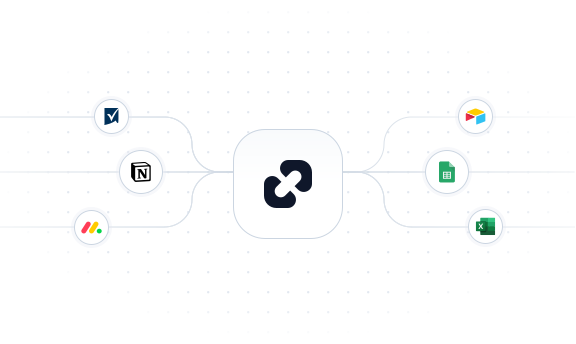
You can sync FreshBooks with Notion, Google Sheets, Smartsheet, and monday.com. Check our pages for more details.
Key advantages:
- True no-code experience
- Multi-step workflows
- Advanced conditional logic
- Scales from startups to enterprises
- Designed for cross-tool automation
Unlike basic “if-this-then-that” tools, resynced.io supports advanced business logic while remaining easy to use.
Conclusion: Automate FreshBooks in Minutes, Not Months
Manual accounting workflows slow teams down. Automation increases speed, accuracy, and scalability without additional hiring or system overhauls.
With Resynced, you can automate FreshBooks workflows in 10 minutes, eliminate repetitive tasks, and enable your team to focus on growth rather than administrative work.
Ready to automate FreshBooks?
Visit resynced.io and build your first workflow today.

We are here to synchronize your data!