Author

Antonina Smyrnova
Notion has become a powerhouse in the productivity world, attracting over 20 million users and gaining momentum with businesses everywhere. Teams rely on Notion for far more than note-taking. They operate workflows, build robust databases, and run entire business operations within their flexible platform.
As your Notion databases expand, the real challenge shifts from simply adding data to ensuring it stays accurate, consistent, and seamlessly updated across all your tools.
Most teams use more than Notion. Projects might start in spreadsheets, operations run in internal systems, and product data comes from ERPs. Planning often happens on different platforms. Manually moving this information into Notion or repeatedly re-importing CSV files can quickly slow things down.
This is where resynced.io comes in.
Let’s explore how resynced.io supercharges the process of building and maintaining large Notion databases, making it faster and more dependable than ever.
What Makes Notion Databases So Powerful
A Notion database is so much more than a simple table. Each entry is its own page, capable of holding structured data, text, images, sub-pages, and beyond. This lets you craft rich, interconnected systems that go far beyond the limits of traditional spreadsheets.
The Notion’s databases allow you to:
- Store information using custom properties (text, numbers, dates, relations, rollups)
- Create multiple views (table, board, calendar, list, gallery) from the same data
- Filter and sort content to surface only what matters
Internal surveys reveal that more than 60% of Notion users rely on databases as their primary workspace, often swapping out spreadsheets, CRMs, and task managers. Building from scratch, though, is almost never the quickest route.
Why Templates Help
Notion templates come with:
- Predefined properties
- Ready-to-use views
- Common workflows already structured
Templates can slash your setup time by 50 to 70 percent compared to configuring everything by hand.
You can also design custom database templates, ensuring every new entry comes preloaded with the structure you need. This approach is ideal when you’re generating entries at scale.
Import Data from Spreadsheets
One of the fastest ways to build out large Notion databases is by importing your existing data.
How it works:
- Prepare your data in Google Sheets or Excel
- Export it as a CSV
- Import it directly into Notion
Within seconds, you can transform hundreds or even thousands of rows into organized Notion database entries.
Go beyond one-time imports
This is where resynced.io can help you. Rather than endlessly exporting and importing spreadsheets, resynced.io syncs your external data sources directly with Notion, keeping your databases effortlessly up to date.
This is ideal for:
- Project tracking
- Operations data
- Inventory or planning databases
- Content pipelines
Automatically Generate Databases with Integrations
If your team operates at scale, automation becomes essential.
Automation options include:
- Notion API integrations
- No-code tools like Zapier or Make
- Purpose-built syncing platforms like resynced.io
With automation, you can:
- Generate database entries automatically
- Update properties in real time
- Keep Notion in sync with operational tools
Automation transforms Notion from a static workspace into a dynamic, living system of record.
Use Views to Make Large Databases Usable
Large databases don’t have to feel overwhelming.
Notion views allow you to:
- Show the same data in different formats
- Filter by status, owner, or date
- Focus attention on what matters right now

For example:
- A board view for workflow stages
- A calendar view for deadlines
- A filtered table for active items only

This keeps even the largest datasets speedy, easy to navigate, and always ready for action.
Design Properties Before You Generate at Scale
Before generating hundreds of entries, define:
- Required properties
- Naming conventions
- Relations to other databases
Well-designed properties make it easier to:
- Filter large datasets
- Create rollups and reports
- Scale without confusion
It helps to start seeing your database as a living system, not just a digital filing cabinet.
Notion Databases in Sync with Multiple Platforms
As workflows scale, data rarely lives in just one place.
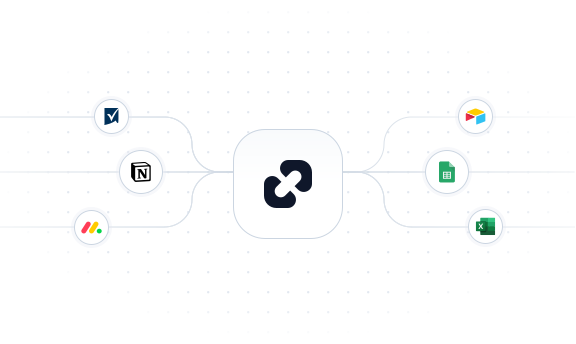
Teams often need to sync Notion with:
- Google Sheets
- monday.com
- other Notion databases
- Internal tools
- Other operational platforms

With resynced.io, you can sync data across multiple platforms simultaneously, ensuring Notion always mirrors your other tools.
Instead of treating Notion as a silo, you can:
- Use it as a live operational dashboard
- Keep planning, execution, and reporting connected
- Ensure everyone sees the same up-to-date information
This slashes manual work and dramatically reduces the risk of relying on outdated information.
Turn Notion into a Living System
When your data syncs automatically, Notion evolves from a simple storage space into a vibrant, living system.
With resynced.io:
- Databases reflect real operational state
- Views stay relevant without manual cleanup
- Teams spend less time maintaining tools and more time using them
For growing teams, this shift often marks the difference between Notion feeling empowering and Notion feeling overwhelming.
For more Notion sync tips and additional information, you can check our detailed YouTube guides.

Final Thoughts
You don’t need to choose between flexibility and speed. By combining templates, imports, automation, and tools like resynced.io, you can quickly and sustainably generate large Notion databases.
Instead of spending hours on manual setup, you can focus on designing better workflows and letting your systems do the heavy lifting.
Ready to get started? Head over to the integration page at resynced.io and follow the quick-start steps.
Start your free trial today!

We are here to synchronize your data!